desktop§
This is what shows up when I open the laptop. Under it there’s CachyOS, installed with no desktop at all. niri decides where windows go, and DankMaterialShell draws the rest: the bar, the launcher, notifications, the lock screen, the colors.
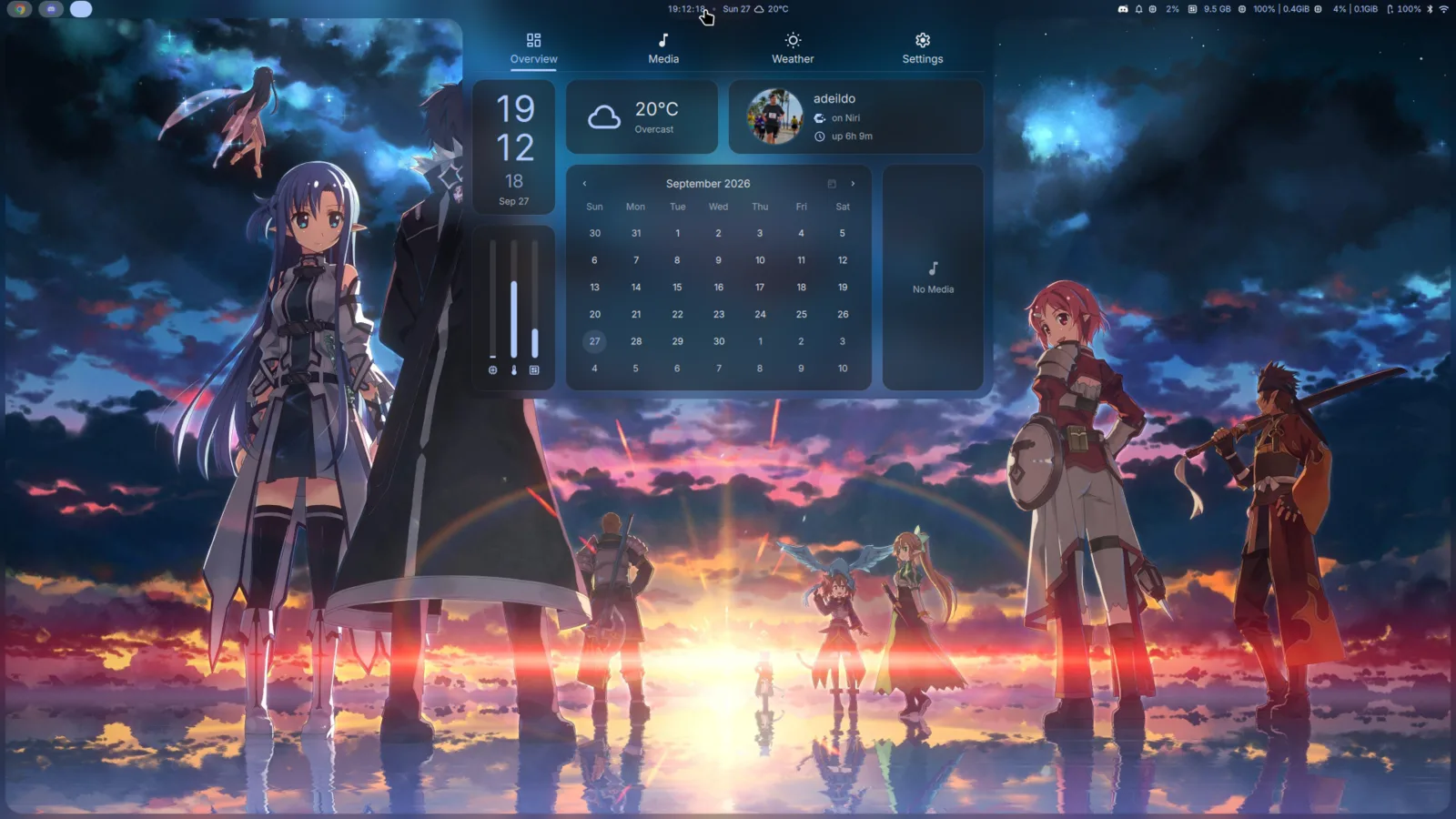
Click the clock in the bar and you get this dashboard.
-
CachyOS
Arch Linux, but with a faster kernel and packages built for recent CPUs. I installed it bare, no desktop.
-
niri
Puts windows side by side on a strip you scroll through. It never squeezes them to make room.
-
DankMaterialShell
Bar, launcher, notifications, lock screen and colors, all in one program you configure from a settings window.
All of this runs on an ASUS ROG Zephyrus G14 (GA402RJ), with a Ryzen 9 6900HS and two GPUs: a Radeon RX 6700S and the Radeon 680M that lives inside the CPU.
Get the same desktop§
Honestly, two steps get you about 90% of what you see here.
-
Install CachyOS and skip the desktop. When the installer asks which desktop environment you want, don’t pick any. You’ll reboot into a plain text console.
-
Log in there and run the Dank Linux installer.
It asks you two things, which compositor and which terminal. I went with niri and Ghostty. It then installs everything and writes a config that already works. Reboot, and you’re looking at the DMS login screen.
That’s it. The rest of this page is what I tweaked afterwards, and I did all of it from the DMS settings window. I never had to open a config file.
Want to read the script first?
Fair. Piping something from the internet into sh runs it sight unseen. This one is short: it downloads dankinstall from the DankMaterialShell releases, checks it against its SHA-256 and runs it. Open install.danklinux.com in a browser and you can read the whole thing.
CachyOS§
CachyOS is Arch Linux with some serious tuning. Underneath it’s still Arch, so pacman, the AUR and the Arch wiki work the same as always.
Why no desktop environment
The installer offers KDE, GNOME, Hyprland and a bunch more. I skipped all of them, since DMS replaces most of what they bring. Right now the system has 218 packages I installed on purpose, out of 1,368 in total.
What I get out of it, over plain Arch:
The default kernel, linux-cachyos, is the same Linux, compiled with a lot more care:
- they build it with Clang and ThinLTO, which lets the compiler optimize across the whole kernel at once
- they run it under real workloads, record what’s hot (that’s AutoFDO), and rebuild it using that recording
- it ticks 1000 times per second, so the desktop reacts faster
- it ships patches this laptop actually uses: newer AMD power management, ASUS hardware fixes, and variable refresh rate over HDMI
I keep linux-cachyos-lts installed next to it. If an update ever breaks something, I pick the LTS kernel in the boot menu and move on.
Arch builds its packages for any x86-64 CPU, going back to 2003. CachyOS rebuilds them for x86-64-v31, which newer CPUs support, so the code can use instructions an old CPU wouldn’t have. The installer checks your CPU and turns these repositories on by itself:
[cachyos-v3] # (1)!
Include = /etc/pacman.d/cachyos-v3-mirrorlist

[cachyos-core-v3]
Include = /etc/pacman.d/cachyos-v3-mirrorlist

[cachyos-extra-v3]
Include = /etc/pacman.d/cachyos-v3-mirrorlist

[cachyos] # (2)!
Include = /etc/pacman.d/cachyos-mirrorlist
- These sit above Arch’s own
coreandextra, so when a package exists in both,pacmantakes the v3 one. - CachyOS’s own tools, like the kernel manager and
chwd. These work on any x86-64 CPU.
During the install, chwd looks at your hardware and installs the right drivers. Here it saw two AMD GPUs and set up the amd profile, so both worked on the very first boot. I didn’t install a single driver myself.
For games there’s cachyos-gaming-meta, which pulls in CachyOS’s own builds of Proton and Wine plus the usual helpers. In practice I open Steam, hit play, and the game just runs.
niri§
niri is a Wayland compositor, the program that decides where each window goes. Most tiling compositors split your screen into smaller and smaller pieces as you open things. niri does the opposite. Windows sit side by side on a strip that keeps growing to the right, and you scroll along it. Opening a new window never shrinks the ones you already have.
Each monitor gets its own workspaces, stacked vertically. A window never spills over onto the monitor next to it.
What I changed§
Just two things, both from the DMS settings.
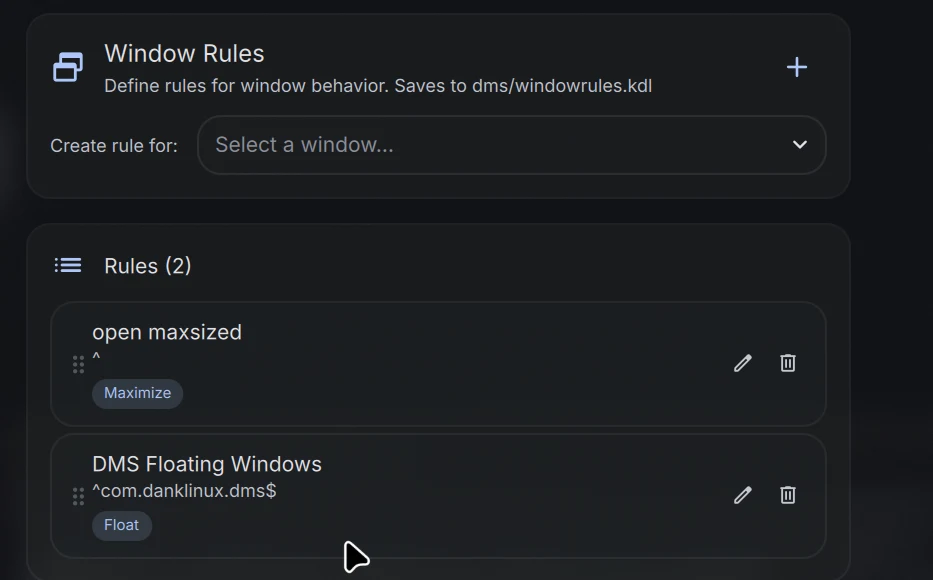
Every window opens maximized. Each app takes the whole width of the screen, and I flip through them like pages. It’s a single window rule that matches every app (^ matches any name). I made it in the window rules editor, which opens with Super+Shift+W. The second rule in the list came with DMS and keeps its own windows floating.
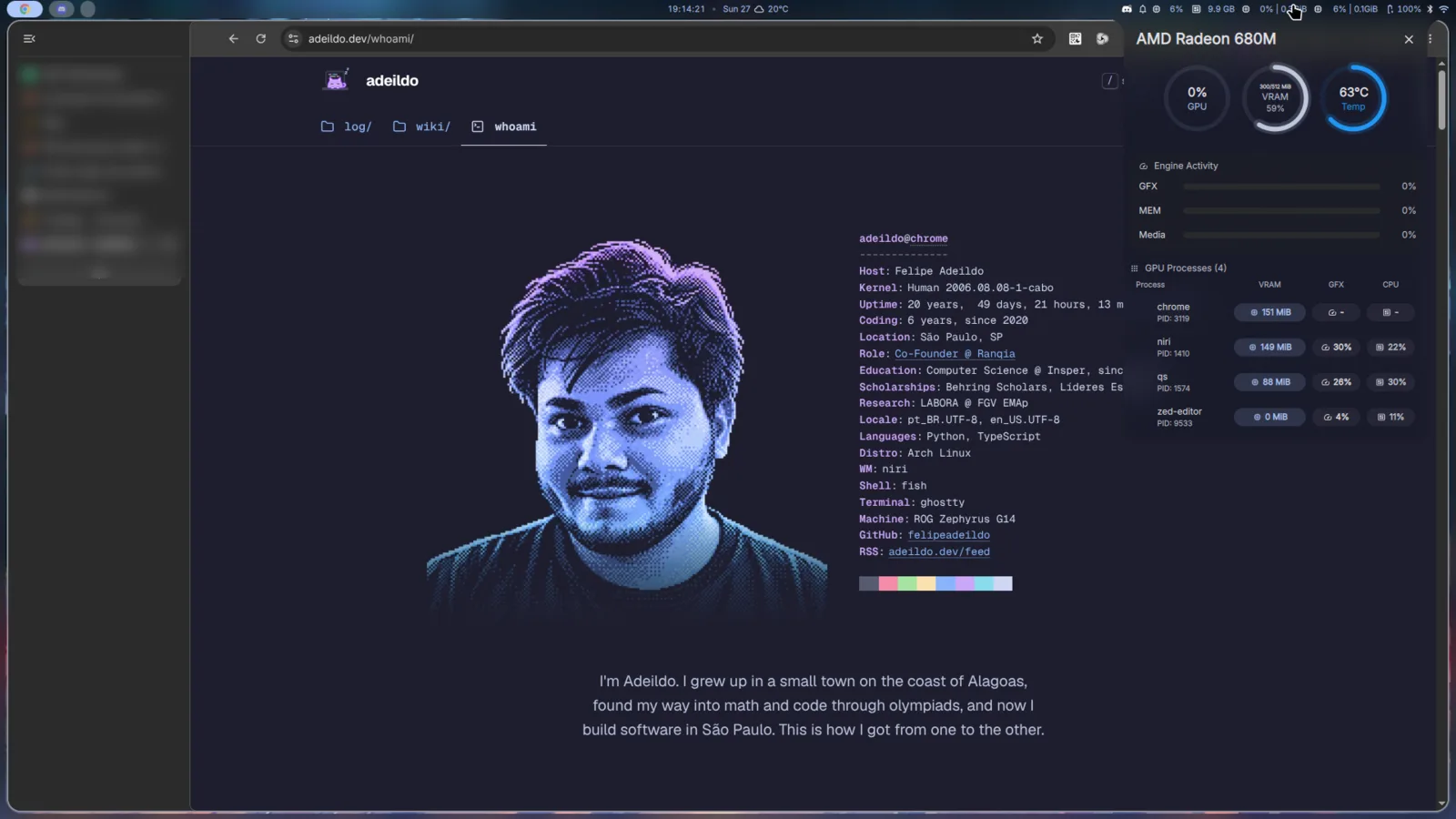
Here’s how that looks with Chrome open. The window fills the screen inside the frame. The panel on the right is the GPU monitor, opened from the bar.
Super+Enter opens Ghostty. The terminal is the window I open the most, so it gets the easiest key.
When I do want two things on screen at once, Super+R makes the column a third, half or two thirds of the screen. Super+[ drops the window into the column on its left, one on top of the other.
Keys§
The ones I use all the time. Super is the Windows key.
| Keys | What it does |
|---|---|
| Super+Space | launcher |
| Super+Enter | terminal (Ghostty) |
| Super+Q | close the window |
| Super+H Super+L | previous and next column |
| Super+J Super+K | window below and above, in the same column |
| Super+U Super+I | workspace below and above |
| Super+R | column width: ⅓, ½, ⅔ |
| Super+F | maximize the column |
| Super+W | show the column as tabs |
| Super+O | overview of every workspace |
| Super+V | clipboard history |
| Super+N | notifications |
| Super+M | task manager |
| Super+, | DMS settings |
| Super+Alt+L | lock the screen |
| Super+X | power menu |
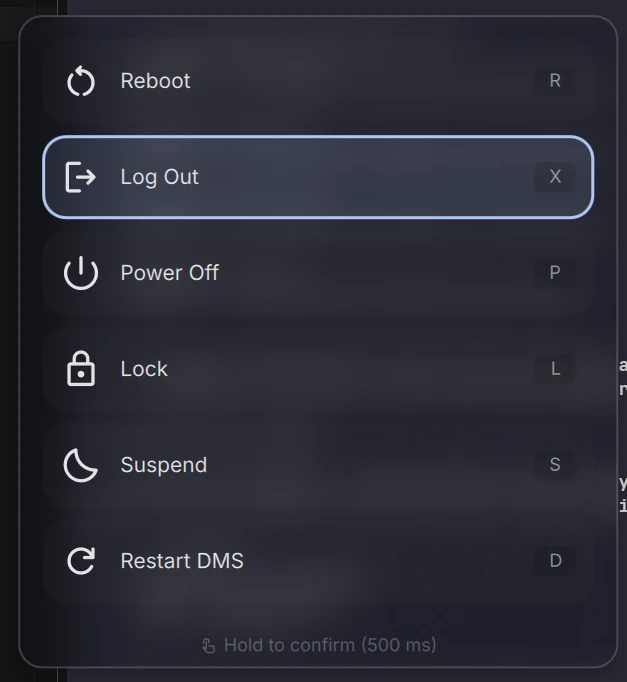
Super+X opens the power menu, and every option has its own letter: R reboots, P powers off, S suspends, L locks, X logs out. You hold the letter for half a second to confirm, so a stray key doesn’t turn the laptop off.
There’s also Restart DMS (D), which reloads the bar and everything else DMS draws, without closing any window. Good for when a plugin gets stuck.
What niri needs around it§
niri places windows and that’s it. Its wiki keeps a list of the other programs a desktop needs, and without them some apps break in odd ways: a file picker that never opens, a login that isn’t remembered. Here’s what covers each one on my machine:
| What | Why apps need it | What I use |
|---|---|---|
| notifications | to tell you things | DMS |
| portals | file pickers, screen sharing, dark mode for apps | xdg-desktop-portal-gtk and xdg-desktop-portal-gnome |
| a secret store | to save passwords and logins, Chrome and Zed use it | gnome-keyring |
| an authentication agent | the password prompt when an app needs root | DMS |
| Xwayland | to run apps that only speak X11, like Steam | xwayland-satellite, from the DMS installer |
DMS covers two of them, and the installer brings xwayland-satellite. The rest is one command:
Nothing to configure after that. niri ships a file that tells each request which portal answers it:
[preferred]
default=gnome;gtk; # (1)!
org.freedesktop.impl.portal.Access=gtk;
org.freedesktop.impl.portal.Notification=gtk;
org.freedesktop.impl.portal.Secret=gnome-keyring; # (2)!
- Ask the GNOME portal first, and fall back to the GTK one. The GNOME portal is the one that does screen sharing, and it opens Nautilus when an app asks you to pick a file.
- Saved passwords go to
gnome-keyring.
Sharing the screen§
Screen sharing in Chrome and Discord goes through the GNOME portal. The app asks, a dialog opens, and you pick a whole monitor or a single window.
niri has a few more tricks for this
I haven’t set these up, but each one is a few lines in niri’s config. The screencasting page has the details.
- Hide windows from the stream. A window rule with
block-out-from "screencast"shows that window as a black box to whoever is watching, while you still see it normally. Good for a password manager or a chat. - Switch what you’re sharing mid-call. Pick “niri Dynamic Cast Target” in the dialog, then a key decides what goes out: the focused window (
set-dynamic-cast-window) or the whole monitor (set-dynamic-cast-monitor). No need to stop and share again. - Fullscreen without taking the screen.
toggle-windowed-fullscreentells an app it went fullscreen while the window stays its normal size. Slides without the browser bar, and the notes still visible next to them.
DankMaterialShell§
DankMaterialShell, DMS for short, is made by AvengeMedia under the Dank Linux name. niri on its own only places windows. The bar, the launcher, notifications, the lock screen, all of that usually means installing and configuring a separate tool for each one: waybar, mako, swaylock, swayidle and friends. DMS is all of them in one program, with one settings window (Super+,). Even the login screen is DMS.
flowchart LR
  settings["DMS settings"] --> dms["DankMaterialShell"]
  dms -->|writes niri's config| niri["niri"]
  src["wallpaper or album art"] --> matugen["matugen"]
  dms --> matugen
  matugen -->|colors| apps["apps · terminal · editors"]
So I change something in the settings window, and DMS rewrites niri’s config and every app’s colors on its own.
Frame mode§
This one setting is most of why the desktop looks the way it does. Frame mode draws a thin border around the whole screen and melts the bar into it, so the bar stops looking like a strip glued to the top. You can see it around the full-screen screenshots on this page. I made mine thinner and almost see-through:
| Setting | Default | Mine |
|---|---|---|
| frame | off | on |
| thickness | 16 | 7 |
| opacity | 100% | 36% |
| bar size inside the frame | 40 | 24 |
| bar inset padding | auto | 9 |
Colors§
The theme is set to dynamic. DMS pulls the colors out of the wallpaper with matugen and paints everything with them: the shell, my apps, the terminal, the editors. Change the wallpaper and the whole system follows. I switched the palette style from Tonal Spot to Fidelity, which stays closer to the colors actually in the picture.
GTK apps like Nautilus get the colors through a gtk.css that DMS writes into ~/.config/gtk-3.0 and ~/.config/gtk-4.0. Zed and Ghostty get a theme file of their own.
Colors from the music
The media player in DMS already picks an accent color from the album art of what’s playing. My Music Theme plugin takes that color and repaints the whole system with it.
The cursor is Bibata Modern Classic, at 24 px. No secret there. I installed it from the AUR and picked it in the DMS settings, under Theme & Colors.
The bar§
I don’t use a dock. The bar up top is enough.



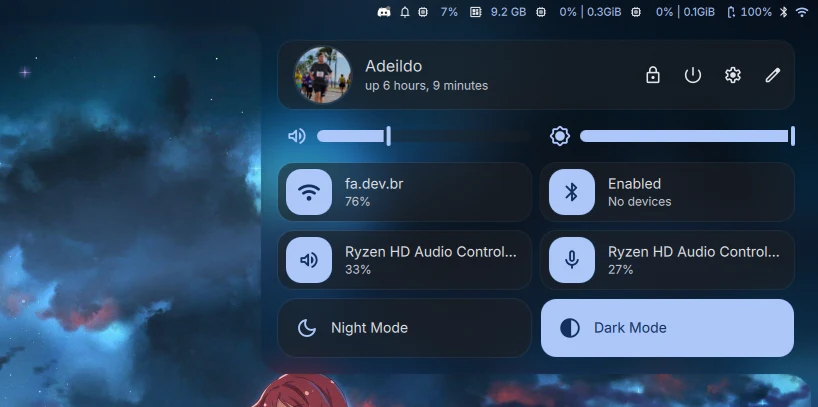
The control center at the right end has Wi-Fi, Bluetooth, audio devices, brightness, night mode and dark mode.
The launcher§
Super+Space opens it. Apps come first, sorted by how often I use them, and the tabs at the bottom switch to files or plugins.
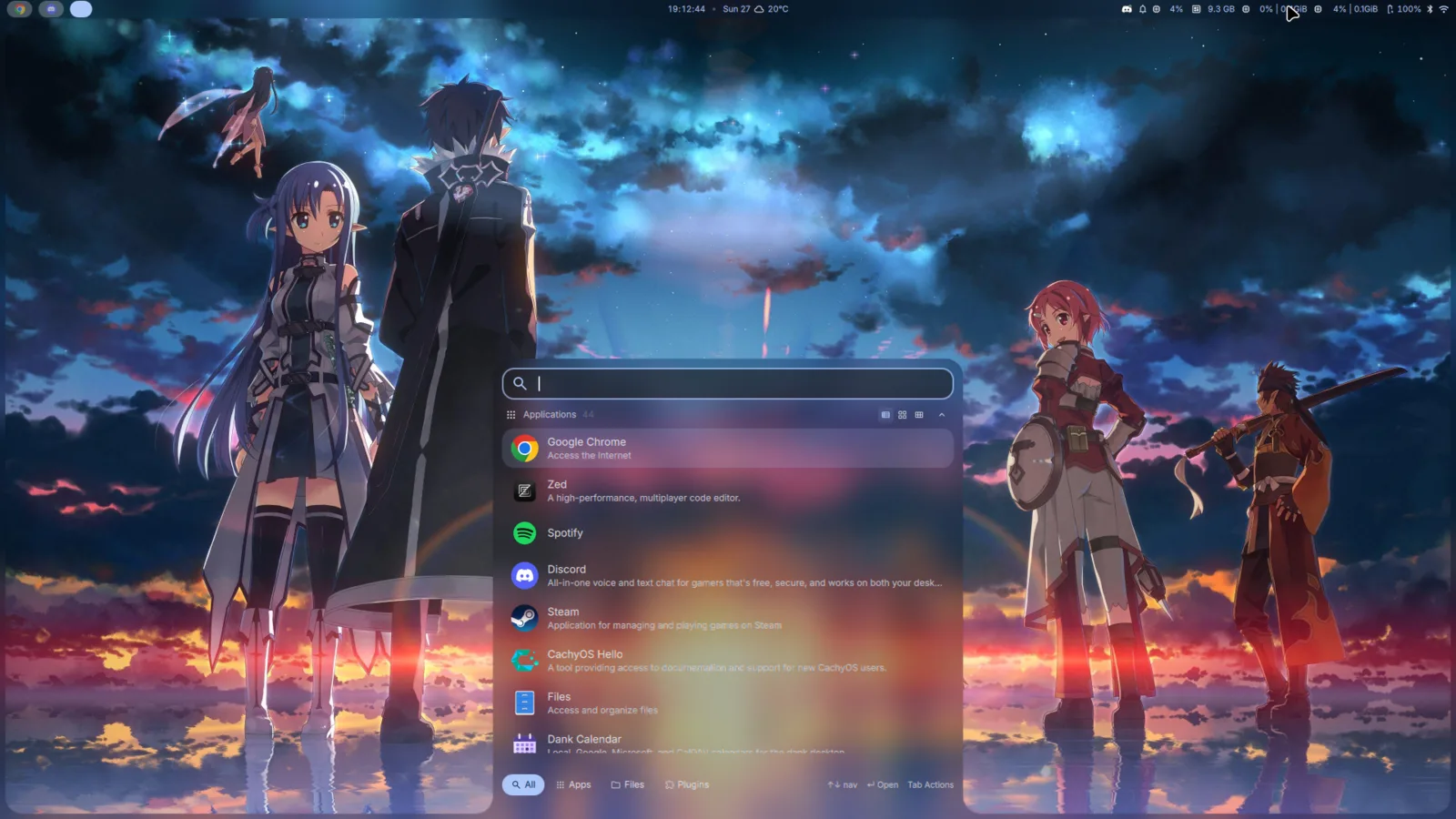
It’s also a calculator, always on. Type 77*34 and 2618 is already there, Enter copies it. Other tools wake up with a short prefix:
| Prefix | Tool | Try |
|---|---|---|
? |
search the settings | ? blur |
cb |
clipboard history | cb token |
pw |
power menu | pw reboot |
qrg |
QR code generator | qrg https://adeildo.dev |
Every other setting I changed
| Setting | Default | Mine |
|---|---|---|
| animations | fast | a bit slower, and slower still for popups |
| blur | off | on |
| floating windows | opaque | 34% opacity |
| panels on top | opaque | 57% opacity |
| bar shadow | on | off |
| widget colors | default | colorful, on a flat background |
| app icons on workspaces | hidden, grouped, up to 3 | shown, one per window, up to 5 |
| tray icons | original colors | monochrome |
| clock | follows the language | 24 hours, with seconds |
| weather | manual location, km/h | automatic location, m/s |
| dashboard | wallpaper tab shown | wallpaper tab hidden |
| network | automatic | prefer Wi-Fi |
| cursor | system default | Bibata Modern Classic, 24 px |
| color picker | off | on |
Plugins§
DMS has a plugin registry, and installing one is a click in the Plugins tab. These are the five I keep on. Three of them have code of mine in them.
-
I wrote this one. It repaints the whole system with the colors of the album art that’s playing, without touching the wallpaper. Stop the music and everything goes back to the wallpaper colors.
-
By Navid A. I added the automatic GPU discovery, so it finds every GPU on its own. Usage, video memory, temperature, power and which processes are on the GPU, one widget per GPU. That’s how my bar shows both.
-
By Nicolas Bellamy, with a good chunk of my code in it. Shows my Claude Code limits in the bar, with tokens, estimated cost and daily activity when you click it. It also splits usage by profile from claude-code-profiles, another project of mine.
-
By Bruno Rocha. The math in the launcher. I turned on “always active”, so it answers any valid expression without a prefix.
-
By LuckShiba. How many containers are running, right in the bar. Click it to start, stop or restart one, read its logs or open a shell inside it.
How Music Theme works§
DMS already had every piece. They just weren’t connected, so I connected them.
- DMS already knows what’s playing, and already picks an accent color from the album art for its media player.
- The plugin waits 250 ms for that color to settle. Otherwise skipping through five songs would repaint the system five times.
- It sends the color down the same path the wallpaper colors take. Everything DMS knows how to paint (GTK and Qt apps, terminals, Neovim, VS Code, Zen) follows the song.
- When the music stops, or I turn the plugin off, the colors go back to the wallpaper.
No playerctl, no Python, nothing extra to install. It only uses what DMS already gives plugins.
-
x86-64-v3 covers the instructions that came with CPUs from around 2013 on, like AVX2 and FMA, which speed up a lot of number crunching. Every Ryzen has them, and so does every Intel CPU since Haswell. Phoronix measured how much faster CachyOS gets with them. ↩